Best Notes Quick Reference
How to access and create a new document in Best Notes.
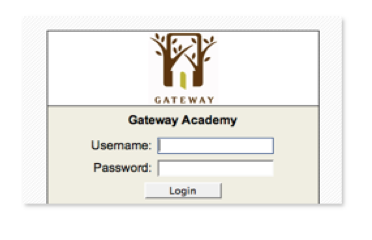
I. Click on the Best Notes icon to begin.

II. Type in user name & team password to login to the Best Notes application.
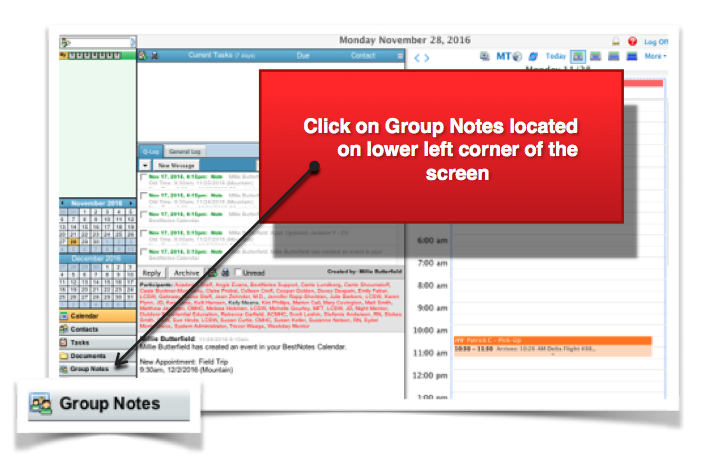
III. Access 'Group Notes'.
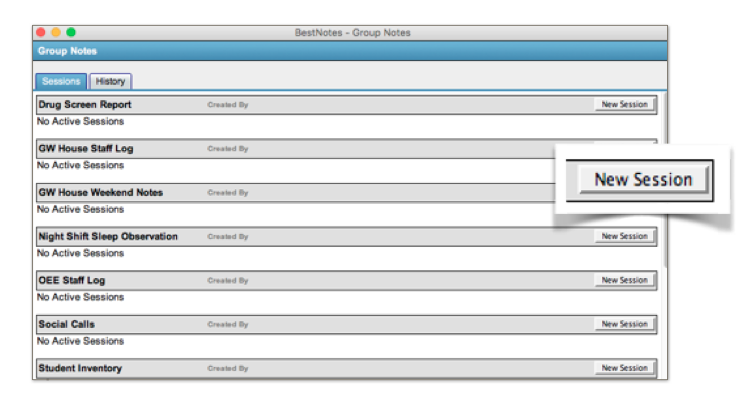
IV. Choose the document that you would like to start (Student Inventory, OEE/Weekday Staff Log) and click on 'new session'.
V. Once you have created the new document, your next step is to add a participant name.
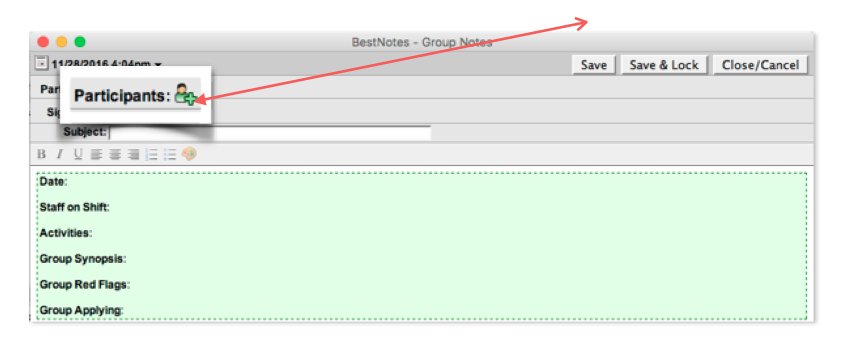
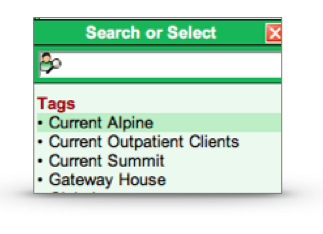
VI. Select either 'Current Alpine' or 'Current Summit' when creating a (GROUP NOTE).
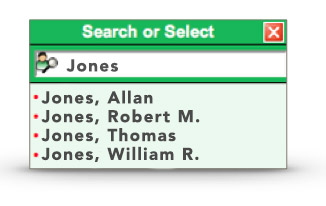
VII. Type in the student's name when creating an individual (Inventory Form).
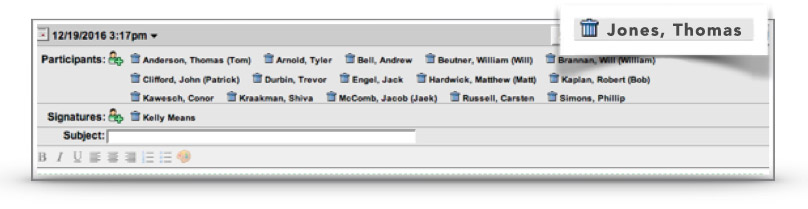
VIII. Once the student names pop up, you are ready to begin editing your document. Keep in mind that you may need to remove student names departing on the document that you are working on. Student names can be removed by clicking on the garbage can next to the student name.
IX. Best Notes does not auto save which means that you must regularly click on 'SAVE' or you will lose your work.
X. Once you finish editing your document, click 'SAVE & LOCK'.
XI. DO NOT Save & Lock unless you are finished with your document. Locked documents are no longer editable.
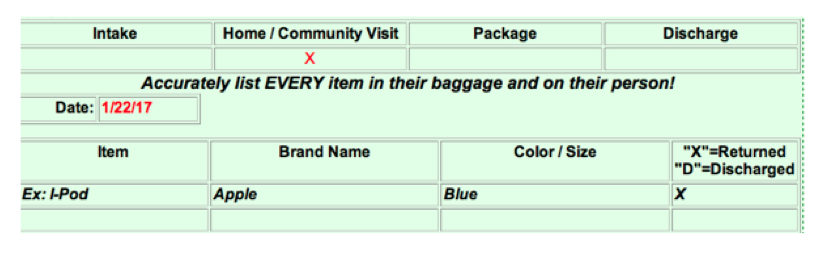
XII. Documents must be filled out in entirety and must always include the student name, staff name, date, and any other pertinent information. Push the (tab) button to add additional lines in a document.
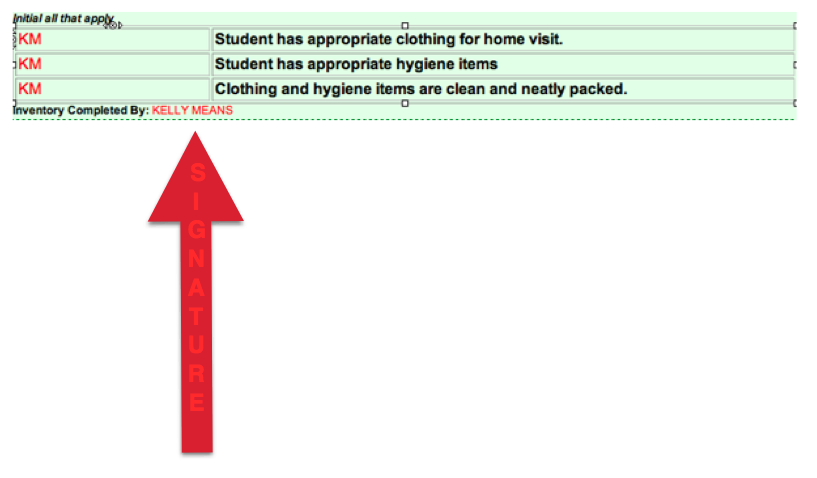
XIII. Scroll to the bottom of the document and sign it before saving and closing the document.